
ASUS’s TUF Gaming line has quietly become one of the go-to choices for gamers who want solid performance without breaking the bank. The brand covers everything from laptops and peripherals to PC components—and yes, monitors too. You could genuinely build an entire gaming setup using nothing but TUF products if you wanted to.
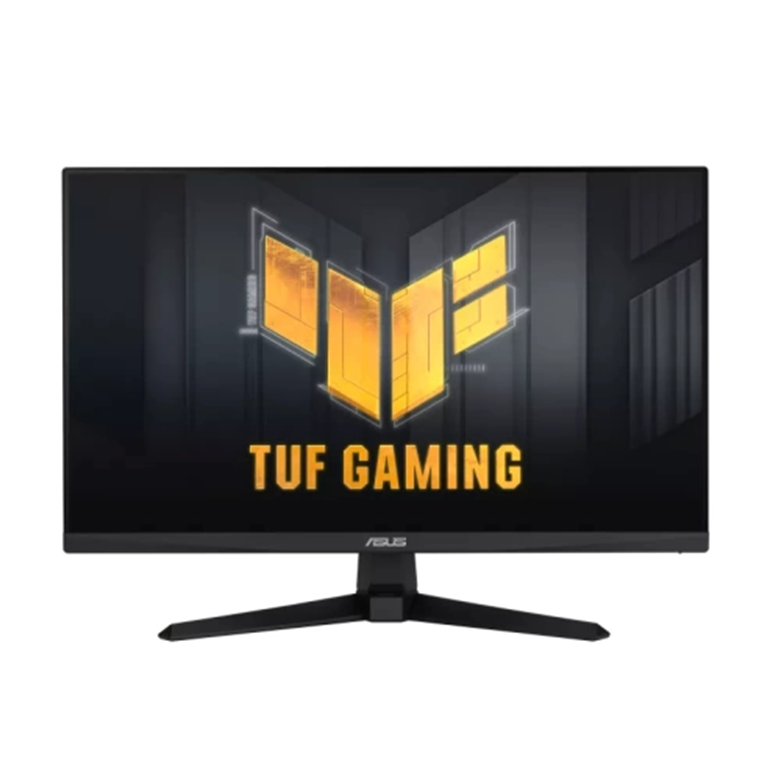
Today, we’re looking at the VG249Q1A, a 24-inch Full HD gaming monitor with an IPS panel. IPS means you’re getting accurate colours and wide viewing angles, which is great for design work, content creation, and making your games look sharp. Being a gaming monitor, it also comes loaded with features—colour presets, a built-in crosshair overlay, and even a dedicated MOBA mode that’s… interesting, to say the least.
Let’s break down what this monitor offers and whether it’s worth your money.
Specifications at a Glance
| Feature | Details |
|---|---|
| Screen Size | 23.8 inches (59.94 cm) |
| Resolution | 1920 x 1080 (Full HD) |
| Panel Type | IPS |
| Refresh Rate | 165Hz |
| Response Time | 1ms |
| Backlight | LED |
| Screen Finish | Matte |
| Brightness | 250 cd/m² |
| Contrast Ratio | 1000:1 (static) / 10000:1 (dynamic) |
| Viewing Angles | 178° horizontal / 178° vertical |
| Colour Depth | 16.7 million colours |
| Pixel Density | 0.2745 x 0.2745 mm |
| VESA Mount | 100 x 100 mm |
| Tilt Adjustment | -5° to 23° |
| Dimensions (with stand) | 541.04 x 393.33 x 173.98 mm |
| Power Consumption | 21W (0.5W standby) |
| Built-in Speakers | 2x 2W |
Connectivity
- 2x HDMI 1.4
- 1x DisplayPort 1.2
- 1x combo audio jack
What’s in the Box?
The packaging is straightforward. You get the monitor panel with the stand already attached to the back (it can be removed with a Phillips-head screwdriver if you prefer a wall mount). The base needs to be connected separately.
There’s also a standard power cord included. Depending on your region, you might also find HDMI and DisplayPort cables in the box, though this isn’t guaranteed everywhere.
Drivers and Software
ASUS provides a dedicated software tool called DisplayWidget, which you can download from their official support page. This app is genuinely useful—it lets you control all the OSD (on-screen display) settings directly from Windows using your mouse and keyboard, instead of fiddling with the small joystick on the back of the monitor.
DisplayWidget Features
The app includes a GameVisual panel with seven colour presets:
| Mode | Description |
|---|---|
| User | Fully customisable to your preferences |
| Racing | Slightly toned-down image with more visible blacks; good all-rounder |
| RTS/RPG | Similar to Scenery mode but with lower brightness |
| FPS | The most saturated option for maximum visibility |
| Scenery | Vibrant and punchy colours |
| Cinema | Designed for movies with increased saturation and darker blacks |
| sRGB | Neutral colours that stick closely to the sRGB colour gamut |
| MOBA | Converts everything to greyscale except reds and greens, making health bars easier to spot |
The MOBA mode is interesting in theory—it’s meant to help you spot health bars more quickly in games like League of Legends or Dota 2. In practice, it can feel a bit disorienting and might actually put you at a disadvantage if you’re not used to it.
GamePlus Overlay
If you play shooters, the GamePlus section lets you add a permanent crosshair overlay to the centre of your screen. You can choose from three styles and pick either red or green for the colour. Handy for games that don’t have great crosshair options built in.
Blue Light Filter
There’s also a Blue Light Filter with multiple levels. Each step reduces the amount of blue light emitted by the screen, which can help reduce eye strain during long sessions—especially at night.
Design and Build Quality
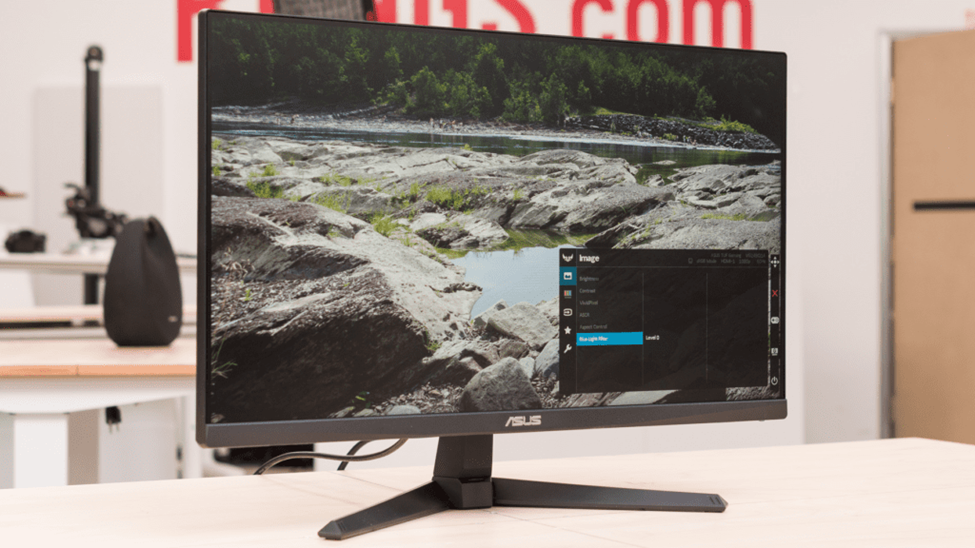
Let’s be honest: this is a budget monitor, and it looks like one. The exterior is made entirely of black plastic, which keeps costs down but doesn’t scream premium. That said, it’s functional and does the job.
On the back, you’ll find VESA 100×100 mm mounting holes, so you can easily attach it to a monitor arm or wall mount if you want to free up desk space. The stand itself is basic—it only offers tilt adjustment (from -5° to 23°), so there’s no height, swivel, or pivot adjustment here.
Connectivity and Refresh Rate
Here’s something important to note: the two HDMI 1.4 ports are capped at 120Hz. If you want to take full advantage of the 165Hz refresh rate, you’ll need to use the DisplayPort 1.2 connection.
The monitor also supports FreeSync Premium, which syncs your display’s refresh rate with your GPU’s frame output to eliminate screen tearing. This works with AMD GPUs from the 200-series onwards and NVIDIA GPUs from the 10-series onwards.
There’s also a combo audio jack if you want to use the built-in 2W stereo speakers. They’re fine for basic use, but you’ll probably want external speakers or headphones for anything serious.
OSD Menu
If you prefer not to use the DisplayWidget software, you can access all the settings directly through the monitor’s on-screen display. The controls are managed via a small joystick on the back of the panel.
The OSD includes options for:
- Colour and brightness adjustments
- GameVisual presets
- GamePlus crosshair overlay
- Blue light filter settings
- Input source selection
- Audio controls
It’s a fairly standard menu, though navigating with the joystick can get a little tedious compared to using the software.
Pros and Cons
What’s Good:
- IPS panel with accurate colours and wide viewing angles
- 165Hz refresh rate for smooth gaming
- 1ms response time
- FreeSync Premium support
- Loads of built-in features (GameVisual, GamePlus, Blue Light Filter)
- DisplayWidget software for easy control
- VESA mount compatible
- Budget-friendly price
What Could Be Better:
- HDMI ports capped at 120Hz (need DisplayPort for 165Hz)
- Stand only offers tilt adjustment—no height or swivel
- Plastic build feels basic
- No minimum brightness, pixel response, or PWM testing data provided
Final Thoughts
The ASUS TUF Gaming VG249Q1A is a solid budget gaming monitor that punches above its weight in features. The IPS panel delivers good colours, the 165Hz refresh rate (via DisplayPort) is great for gaming, and the software support makes customisation easy.
That said, it’s clearly a budget product. The stand is basic, the ports are limited, and the plastic build won’t win any design awards. If you’re looking for a no-frills 1080p gaming display and don’t mind using DisplayPort for the best experience, it’s a strong option for the price.
Just don’t expect premium build quality or advanced ergonomics at this price point.